
BIOS Optimization
A Guide to BIOS Optimization for AMD EPYC 7002 Processors for AI Workloads
 pr_zutto included in Complete AI Workstation Configuration Guide
This guide is part of a series on BIOS optimization, with reference to official AMD documentation. Its purpose is to help you optimize the BIOS settings of your AMD EPYC™ 7002 Series processor based system for the best possible AI workload performance.
Reference:
High Performance Computing (HPC) Tuning Guide for AMD EPYC™ 7002 Series Processors
AMD EPYC™ 9005 BIOS & WORKLOAD TUNING GUIDE
Characteristics of AI Workloads and Optimization Goals
AI workloads, especially deep learning, have extremely high demands on computing resources, which are mainly reflected in:
- High floating-point computation: It is necessary to make full use of dedicated instructions like AVX2 and keep the core frequency at the highest possible level.
- High memory bandwidth and capacity: The loading and processing of large-scale datasets are highly sensitive to memory speed and NUMA topology.
- Efficient data transfer: Fast interconnects (e.g., PCIe) are crucial for offloading computing tasks to accelerators such as GPUs.
Given these characteristics, the following are the BIOS settings that need special attention.
Key BIOS Settings Explained in Detail
1. NUMA Configuration (NPS - NUMA Nodes Per Socket)
Goal: Optimize data locality and memory bandwidth. AI workloads are extremely sensitive to data access patterns.
-
Recommendation: For most AI workloads, it is recommended to set NPS to 2 or 4.
- NPS=2: Creates two NUMA domains per processor socket. This effectively utilizes memory bandwidth and is an excellent choice for balancing performance and versatility.
- NPS=4: Creates four NUMA domains per processor socket. This setting is suitable for highly parallel workloads where the dataset for each NUMA node is relatively small. By explicitly binding processes to specific NUMA nodes, you can achieve the ultimate in data locality.
-
How to check: In a Linux system, you can use the
numactl --hardwareorhwloc-lscommands to verify the changed NUMA topology.
2. Core Performance and Power Settings
Goal: Ensure that CPU cores always run stably at the highest frequency and minimize latency.
- Performance mode: Set the “Determinism Slider” or a similar performance mode option to “Performance” or “Max Performance.” This prioritizes performance over energy efficiency, keeping the core clock high.
- C-states: Set “Global C-state Control” or “C-States” to “Disabled.” C-states are CPU power-saving modes. While they save energy, they introduce latency when cores need to wake up from a low-power state, which can affect the consistency of AI training.
- P-states: Look for settings like “P-states Control,” “DF P-states,” or “APBDIS.” Disable P-states or ensure that the processor is locked in its highest performance state (P0). This prevents the CPU frequency from dynamically adjusting with the load, ensuring the highest clock speed.
3. Memory Settings
Goal: Maximize memory bandwidth while reducing latency.
- Memory speed: Configure the memory to run at the optimal latency supported by the motherboard and DIMMs, for example, DDR4-2933 MT/s. 3200 MT/s is not recommended because the Infinity Fabric clock for the 7002 series is 2933, and keeping the memory clock synchronized with the Infinity Fabric clock is a better choice for low latency.
- Memory interleaving: Ensure that the memory interleaving is configured to provide the best bandwidth. Generally, filling all 8 memory channels per socket provides the maximum bandwidth. For specific settings, refer to your system’s official documentation.
4. PCIe and IOMMU
Goal: Ensure optimal communication between GPUs and other accelerators.
- PCIe generation: Set the PCIe slot used for the GPU to its supported highest generation and link width (e.g., PCIe Gen4 x16).
- Above 4G Decoding: Be sure to enable this option. This is crucial for systems with a large amount of GPU memory, allowing the system to correctly identify and map I/O memory over 4GB.
- IOMMU: If you are using virtualization or container technology that requires device passthrough, keep IOMMU enabled. For bare-metal AI training, disabling this option may provide a negligible performance boost, but it is generally recommended to keep it enabled for system stability and future flexibility.
Recommended Baseline BIOS Settings
The table below provides a set of verified baseline BIOS settings suitable for AI workloads.
ACPI Settings
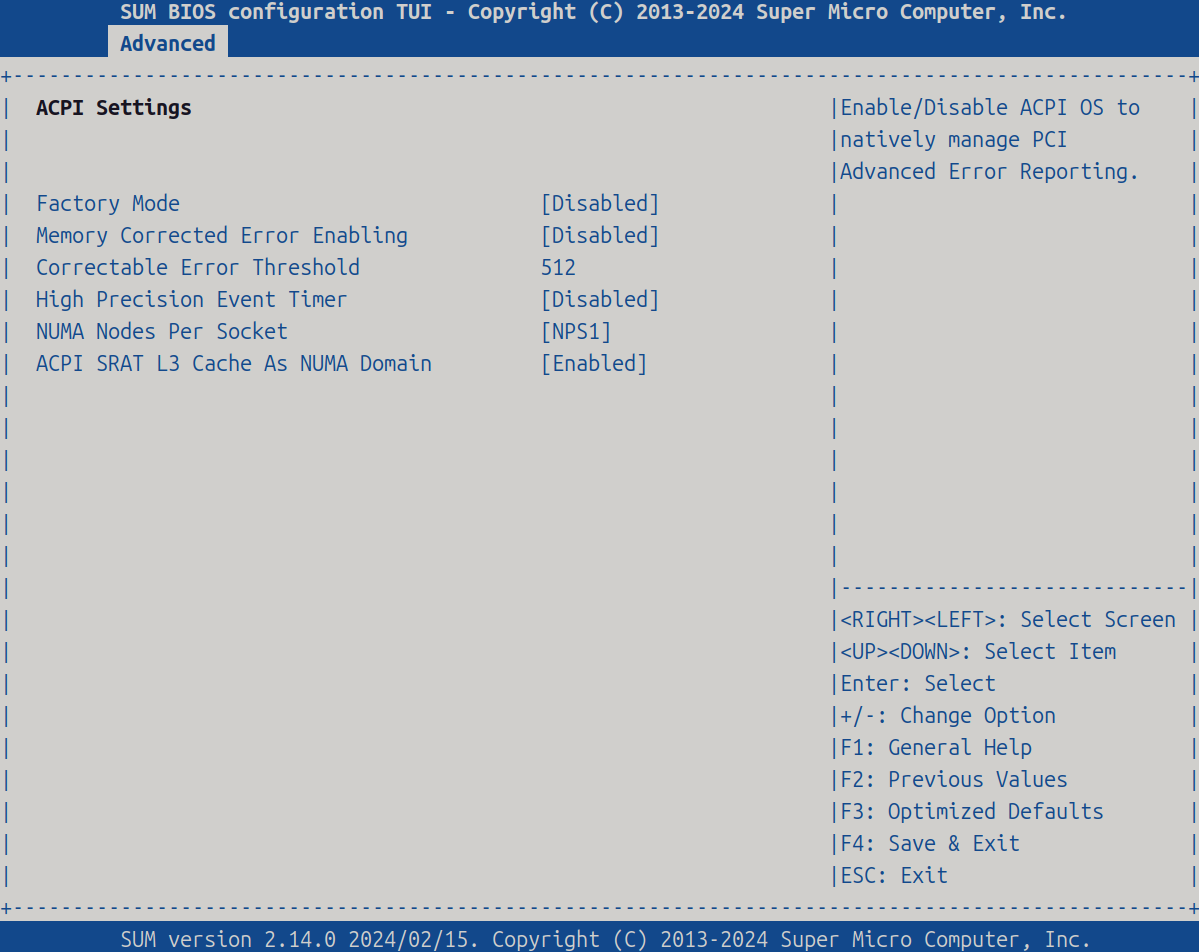
| Item | Setting |
|---|---|
| High Precision Event Timer | [Disabled] |
| NUMA Nodes Per Socket | [NPS1] |
| ACPI SRAT L3 Cache As NUMA Domain | [Enabled] |
North Bridge Configuration
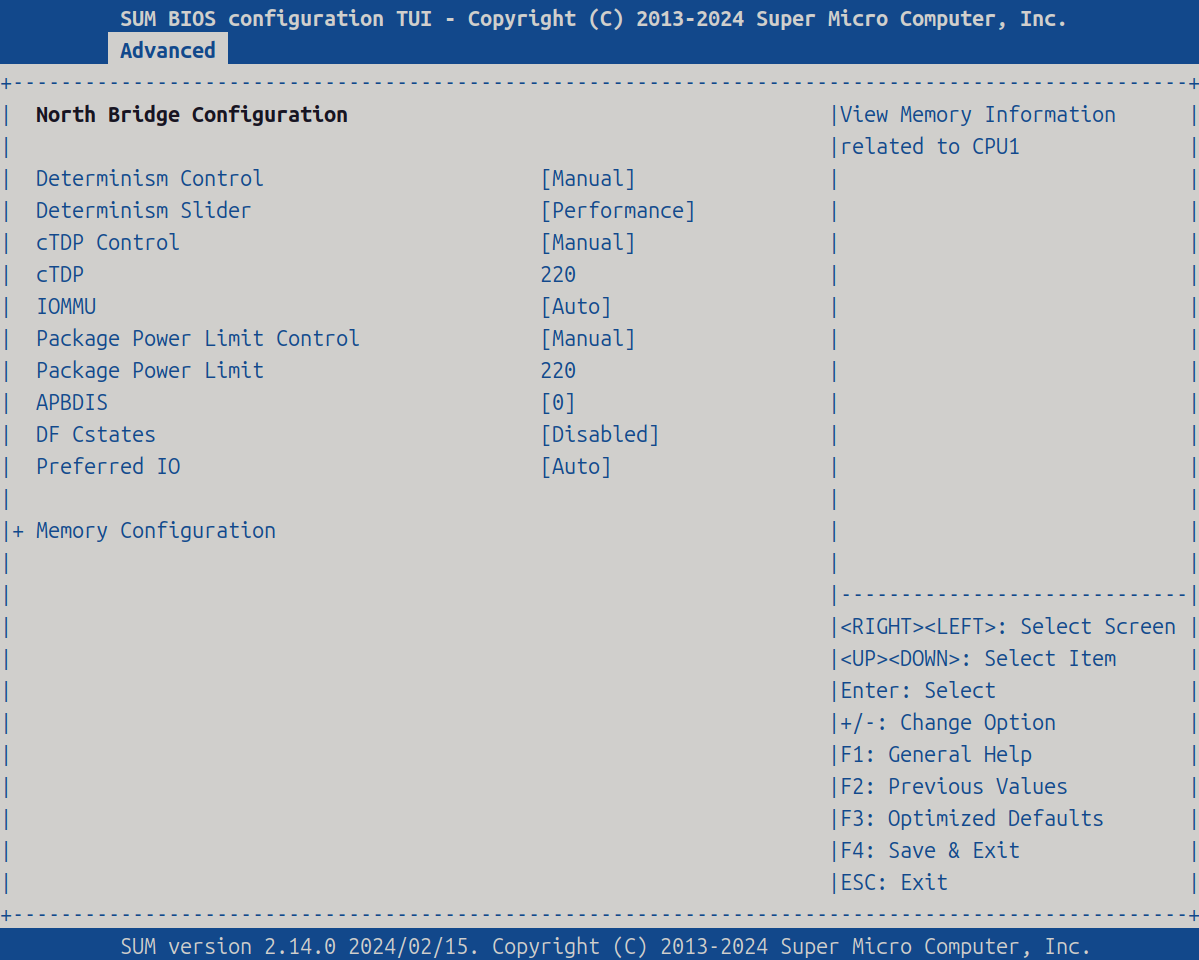
| Item | Setting |
|---|---|
| Determinism Control | [Manual] |
| Determinism Slider | [Performance] |
| cTDP Control | [Manual] |
| cTDP | 220 |
| IOMMU | [Enabled] |
| Package Power Limit Control | [Manual] |
| Package Power Limit | 220 |
| APBDIS | [0] |
| DF Cstates | [Disabled] |
Memory Configuration
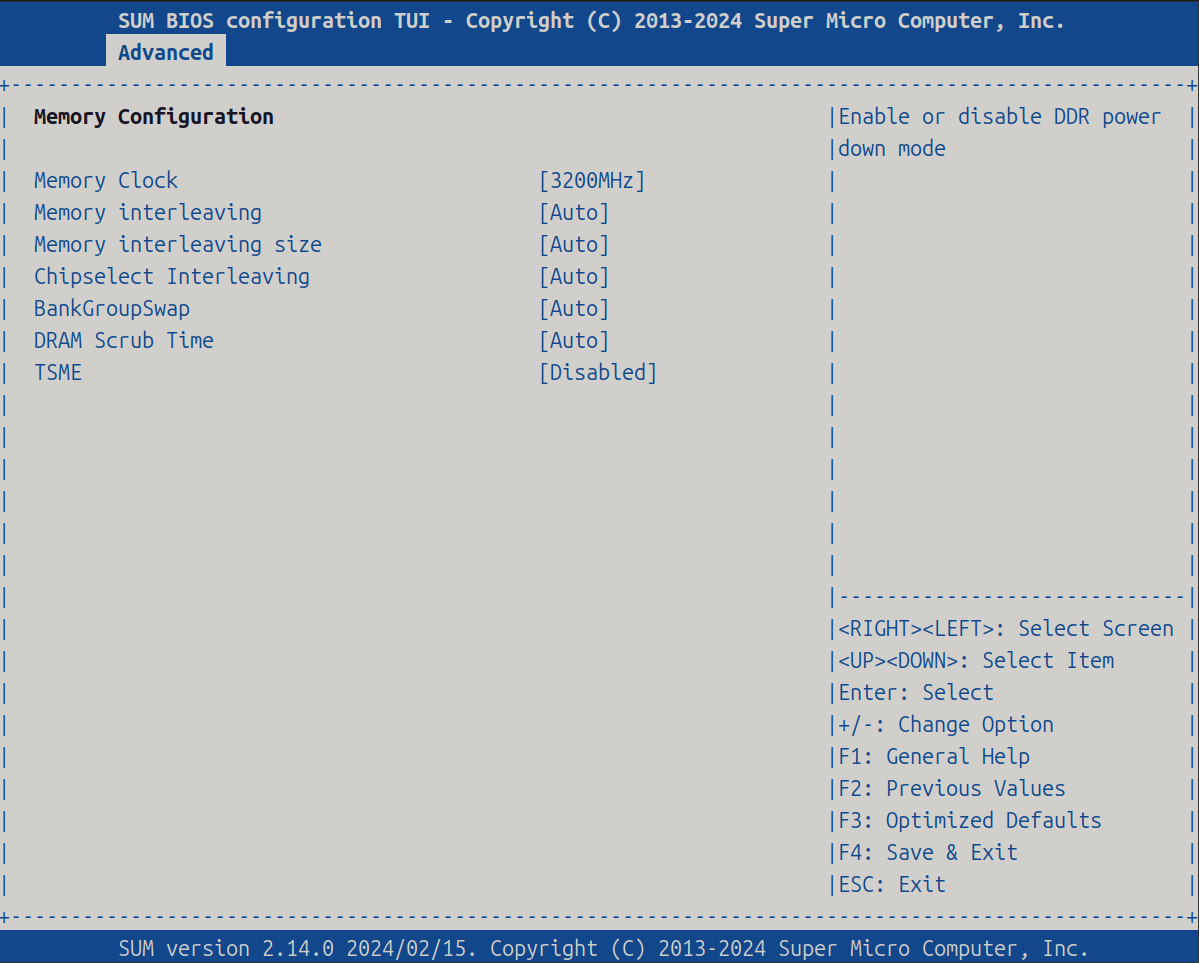
| Item | Setting |
|---|---|
| Memory Clock | [2933MHz] |
| TSME | [Disabled] |
CPU Configuration
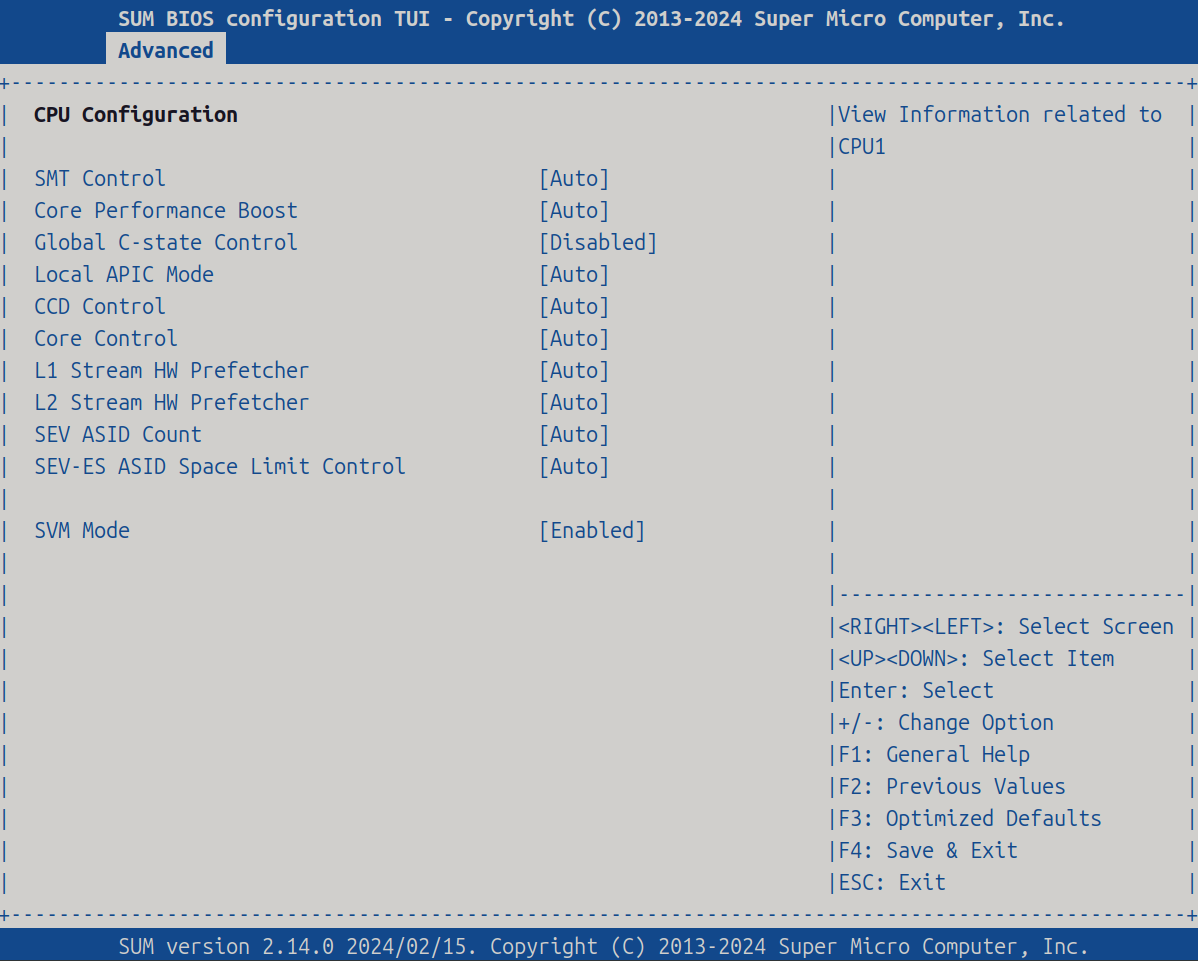
| Item | Setting |
|---|---|
| Global C-state Control | [Disabled] |
PCI Devices Common Settings
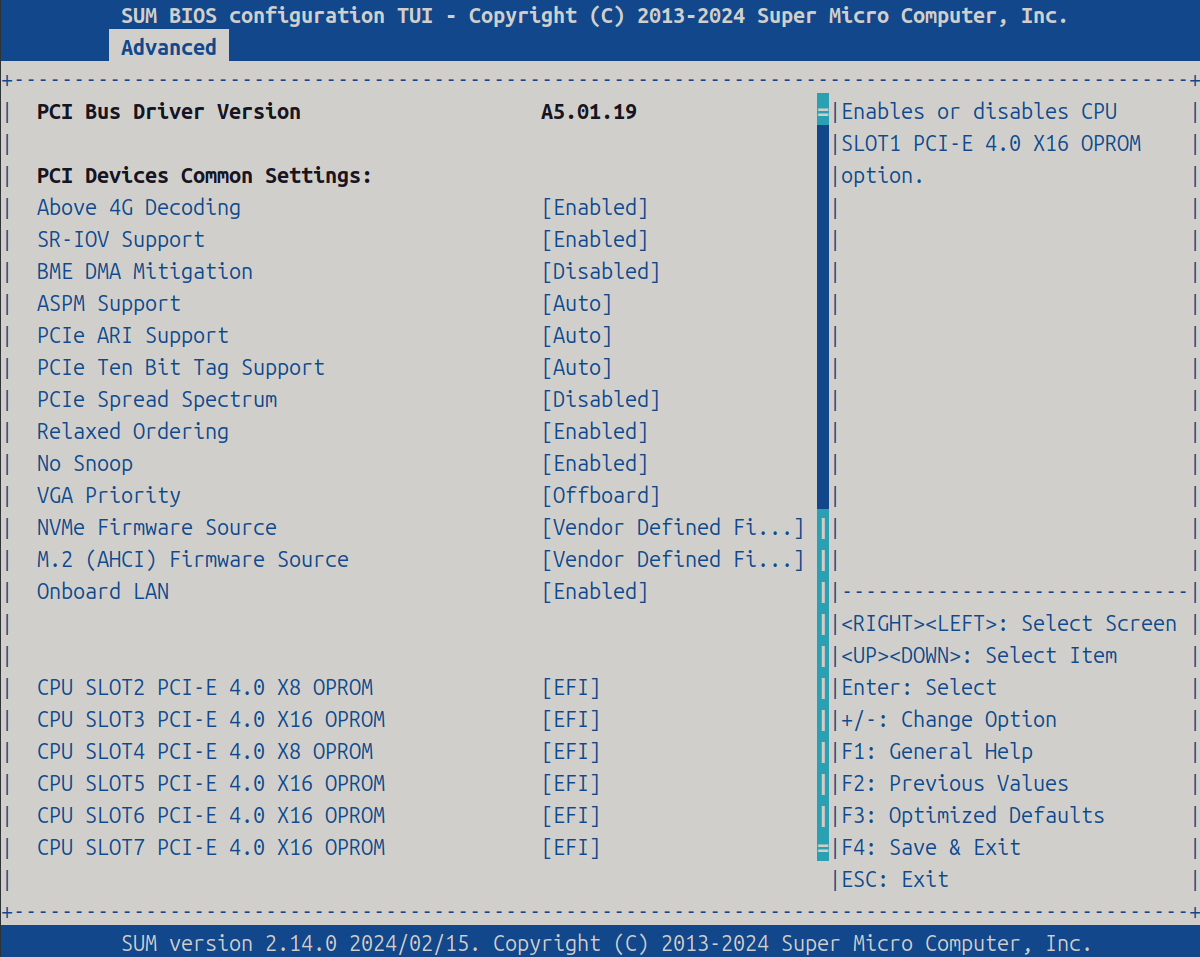
| Item | Setting |
|---|---|
| Above 4G Decoding | [Enabled] |
| SR-IOV Support | [Enabled] |
| VGA Priority | [Offboard] |
General Tuning Principles and Next Steps
- Benchmarking and iteration: BIOS tuning is an iterative process. After each change, you should run specific AI workload benchmarks, measure performance (such as throughput, training speed), and adjust based on the results.
- Operating system tuning: Don’t forget that the BIOS is only part of the optimization process. OS-level optimizations are equally critical, such as using tools like
numactlfor CPU affinity binding, adjusting kernel parameters, or disabling unnecessary background services. - Software stack optimization: Make sure your AI frameworks (e.g., TensorFlow, PyTorch), underlying libraries (e.g., cuDNN, MKL, ROCm), and drivers (NVIDIA, AMD) are all updated to the latest versions and configured accordingly.
By following this guide, you can significantly improve the performance and efficiency of your AMD EPYC 7002 system for AI workloads.
Related Content
- Linux System Partition Policy
- AI Workstation OS Selection
- The Ultimate Guide to Cost-Effective AI Workstation Hardware Selection