
Linux System Partition Policy
 pr_zutto included in Complete AI Workstation Configuration Guide
This series of AI workstations features a combination of SSD and HDD drives, and it’s crucial to allocate and optimize these resources effectively.
System: Ubuntu-24.04
Resource Allocation Strategy
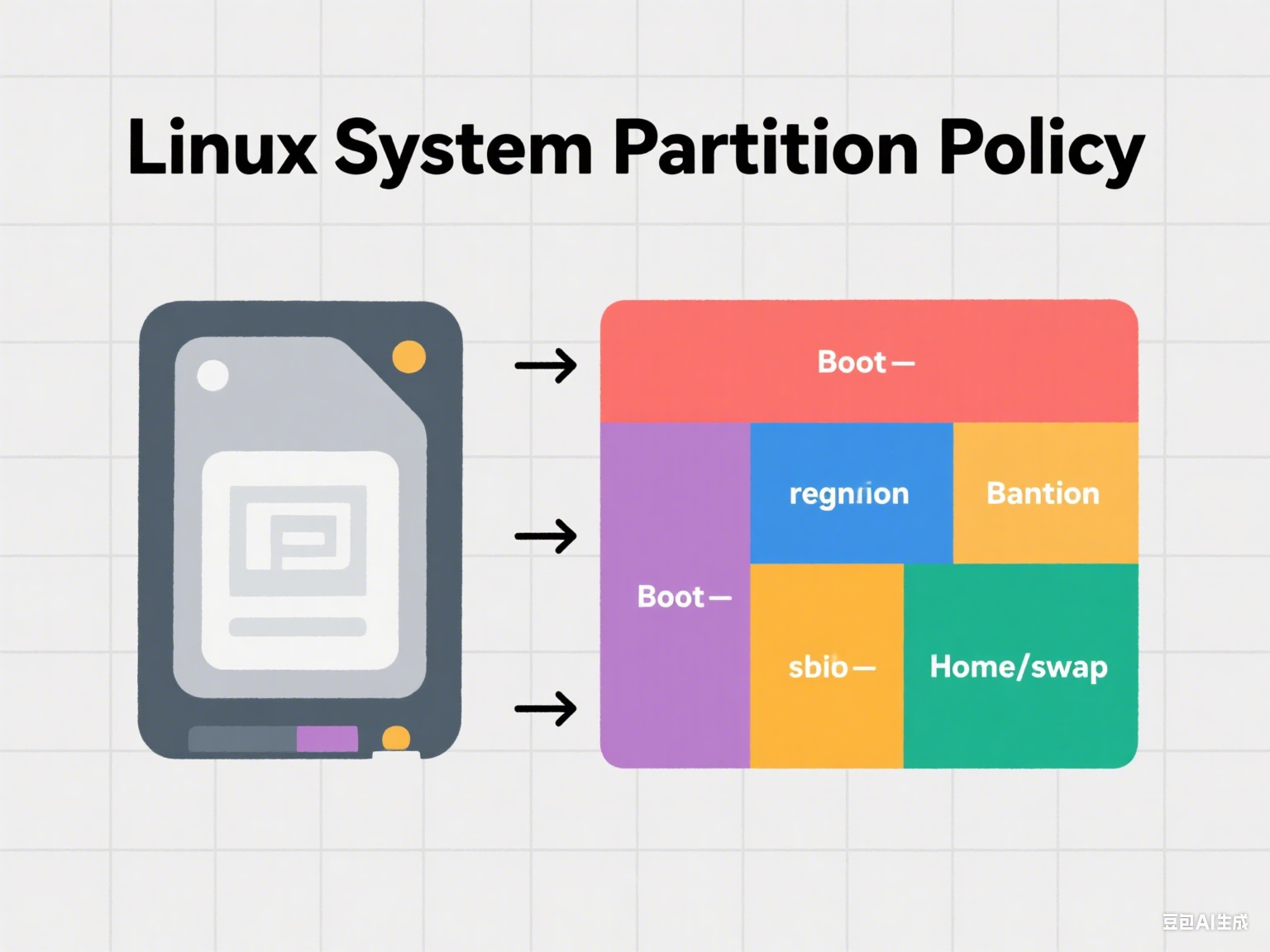
The core idea is to use the fastest SSD for the system and frequently used applications, the second fastest SSD for high-performance data or backups, and the HDD for large-capacity cold storage.
SSD 1 (Ubuntu system is already installed, 1TB)
Usage: Operating system, applications, and a small amount of frequently used personal files.
Allocation Plan:
/(Root Directory): Allocate 100GB - 200GB. This will contain the Ubuntu system itself, all installed software, and some system caches. This size is more than enough for most users, even with a large number of applications installed./home(User Home Directory): Allocate the remaining space on SSD 1 to/home. If you want to place a part of the/homepartition on the HDD (e.g., only large media files), you can adjust this as needed. However, to maximize personal file access speed, it’s recommended to keep most of your frequently used personal files here.- SWAP (Swap Space): Not recommended.
SSD 2 (Empty, 1TB)
Usage: High-performance workloads, important projects, virtual machines, game libraries, frequently accessed large datasets, fast backups, or as an extension of SSD 1 for high-speed storage.
Allocation Plan:
- A single partition, mounted to a custom directory such as
/mnt/ssd2or/data/ssd_fast. Format it with the ext4 file system.
Specific Usage Examples:
- Virtual Machine Images: If you run multiple virtual machines, putting them here will provide optimal performance.
- Large Game Libraries: Install your Steam library or other games on this drive.
- Video Editing/Graphic Design Workspace: Temporarily store project files and rendering outputs here.
- Code Repositories/Development Environment: If your projects depend on a lot of file I/O.
- Cloud Sync Folders: For services like Dropbox or Nextcloud, if your sync directory is large and requires fast access.
- Cache or Temporary Directories: For applications with very large caches, such as the Docker image storage directory.
HDD (Empty, 4TB)
Usage: Large-capacity storage, infrequently used data, data that doesn’t require high speed, archives, media files (movies, music), and long-term backups.
Allocation Plan:
- A single partition, mounted to a custom directory like
/mnt/hdd_storageor/data/archive. Format it with the ext4 file system.
Specific Usage Examples:
- Movie, TV show, and music libraries.
- Photo archives.
- System backups (e.g., Timeshift backup target).
- Infrequently used old project files.
- Archived software installation packages.
Installation Process Guide
Planning from the start is the most effective approach, as it avoids the complexities of modifying existing partitions and migrating data. This is highly recommended.
- Back up all important data! We can’t stress this enough!
- Create a bootable Ubuntu installation USB drive.
- Boot from the USB drive and select “Something else” for manual partitioning.
Example Partitioning Steps:
- SSD 1 (1TB):
- EFI System Partition (ESP): 512MB, FAT32, mount point
/boot/efi. /(Root Directory): 100GB - 200GB, ext4, mount point/./home(User Home Directory): Remaining space (approx. 800GB - 900GB), ext4, mount point/home.
- EFI System Partition (ESP): 512MB, FAT32, mount point
- SSD 2 (1TB):
/mnt/ssd2_data(Custom Directory): The entire 1TB, ext4, mount point/mnt/ssd2_data(you can also choose/dataor another name you prefer).
- HDD (4TB):
/mnt/hdd_archive(Custom Directory): The entire 4TB, ext4, mount point/mnt/hdd_archive(you can also choose/data_archiveor/media/storage, etc.).
Recommended Root (/) Partition Space
Deciding how much space to reserve for the root (/) directory is a common question in Ubuntu reinstallation scenarios. This directory contains core operating system files, most installed applications, and various system configurations and temporary files.
Given your setup with two 1TB SSDs and one 4TB HDD, a reasonable recommended size for the root (/) directory is:
- Recommended Range: 80GB - 150GB
- This range is more than sufficient for most users.
- 80GB: This is already very generous for a standard Ubuntu installation and common software (like browsers, office suites, email clients, and some development tools). You’ll have plenty of space left for future software installations and system updates.
- 100GB - 150GB: If you’re a software enthusiast, like to try out various tools and games, or do a lot of development work (e.g., installing Docker, multiple IDEs, or virtual machine software itself), this range will give you peace of mind and ample room to grow.
- Why Not Larger?
- Wasted Space: Considering your first SSD is 1TB, if you allocate 300GB or even 500GB to
/, that space will likely never be fully used. - Inconvenient Management: Reserving an excessively large
/partition might squeeze the space available for/homeor other data partitions (like the one you plan to create on the second SSD), or prevent a more refined allocation.
- Wasted Space: Considering your first SSD is 1TB, if you allocate 300GB or even 500GB to
- Why Not Smaller?
- Difficult Future Expansion: Although Linux file systems allow for resizing partitions, shrinking or expanding the root partition is often troublesome. It’s best to reserve enough space during the initial installation.
- Update Issues: System updates, especially kernel updates, consume some space. If
/is too small, it could lead to failed updates. - Application Installation Limits: Some large applications default to installing in
/optor/usr/local, which are part of the root directory.
Specific Configuration for this Workstation
The actual partitioning is as follows:
/Root Directory: 100GB- This size ensures that the system core and all potentially installed software (like the CUDA suite) have ample space.
/homeUser Home Directory: Allocate the entire remaining space of SSD 1.- For example, if
/is 100GB, then/homewill have approximately 800GB of usable space (accounting for file system overhead). This space is ideal for storing frequently used documents, project files, and most photos.
- For example, if
The benefits of this allocation are:
- Maximized Performance: The operating system, applications, and your daily files are all on the fastest SSD.
- Simplified Management: You don’t have to worry about which files should go on which SSD or which partition; most files are centrally managed.
- High Utilization: The 1TB SSD is used to its full potential.
As for the second 1TB SSD, it will be specifically a high-speed data drive, usable for virtual machines, large game libraries, video editing projects, etc., while the 4TB HDD is reserved for massive cold storage and backups.
So there you have it, our recommended system partitioning strategy!